
If orders are piling up, shipments are going to the wrong location, or your team is manually updating tracking numbers one by one your Shopify order management process has a problem. And it’s only going to get worse as you grow.
This guide is for Shopify merchants who are ready to get their operations under control whether you’re running a scrappy DTC brand, managing multiple warehouses, or evaluating the best order management system for Shopify Plus.
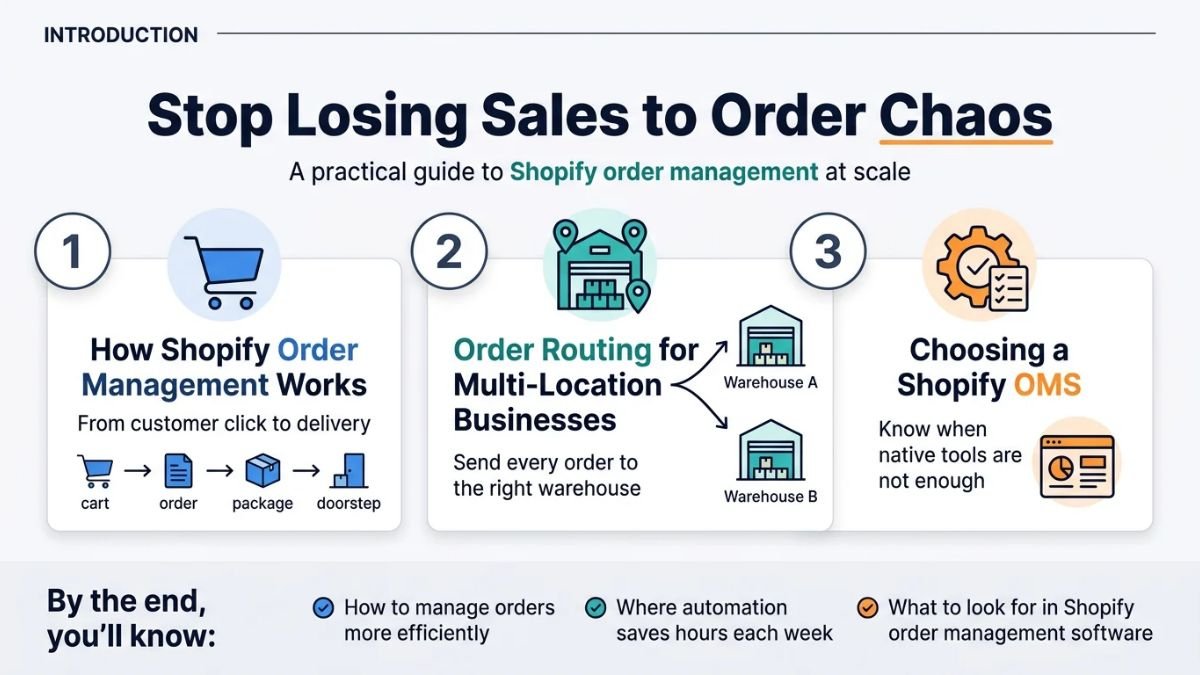
Here’s what we’ll walk through:
- How Shopify order management actually works from the moment a customer clicks “buy” to the moment their package lands at the door
- Order routing for multi-location businesses so the right warehouse ships every order, every time
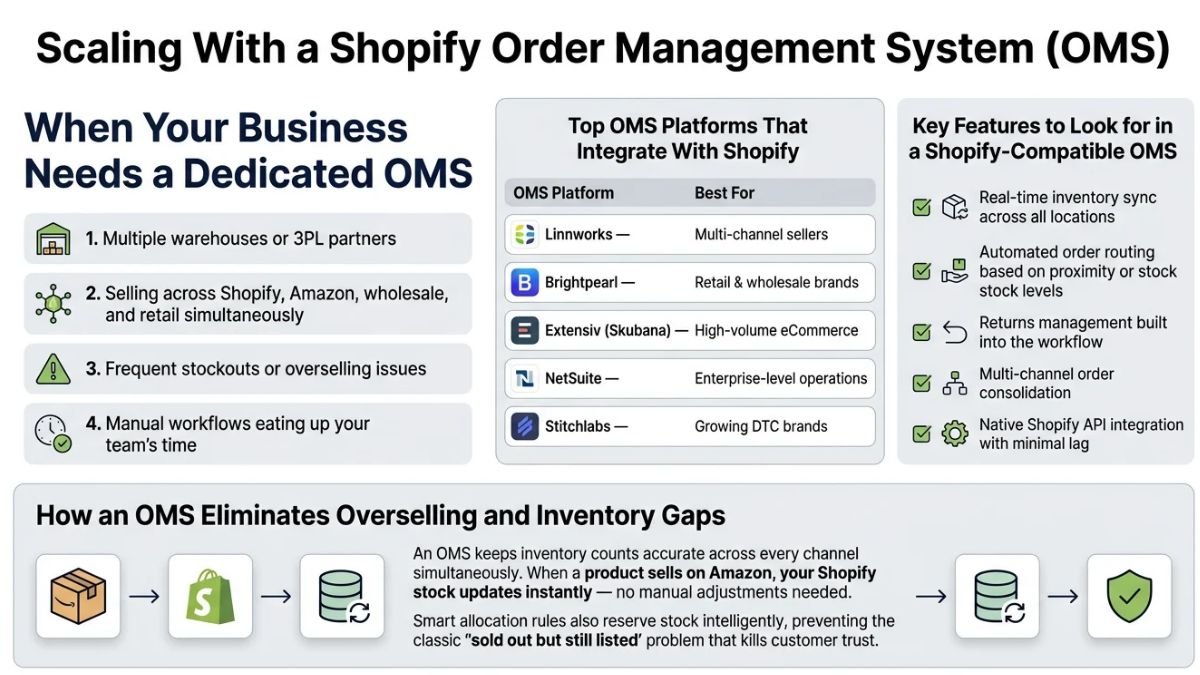
- How to choose a Shopify order management system (OMS) and when the native Shopify tools stop being enough
By the end, you’ll know exactly how to manage orders on Shopify more efficiently, where automation can save your team hours each week, and what to look for in Shopify order management software if you’re ready to scale beyond the basics.
Understanding Shopify Order Management Fundamentals
Order Management Means for Shopify Merchants
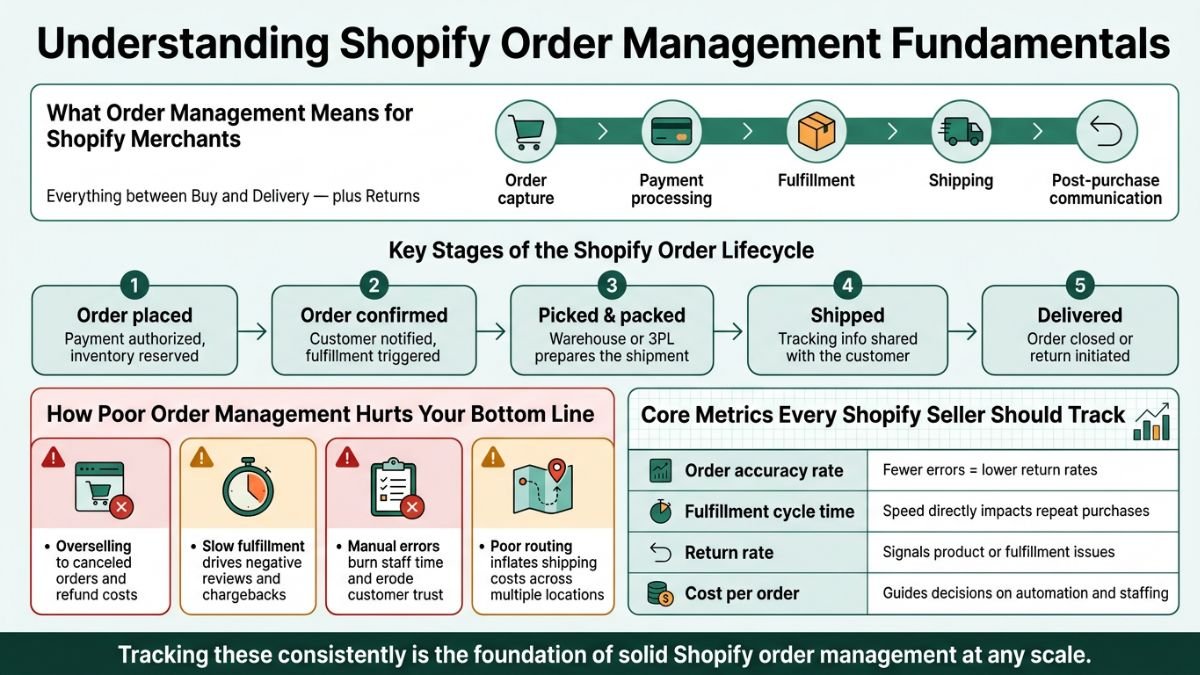
Shopify order management covers everything that happens between a customer clicking “Buy” and receiving their package plus what happens if they want to return it. It includes order capture, payment processing, fulfillment, shipping, and post-purchase communication.
Key Stages of the Shopify Order Lifecycle
- Order placed – Payment authorized, inventory reserved
- Order confirmed – Customer notified, fulfillment triggered
- Picked & packed – Warehouse or 3PL prepares the shipment
- Shipped – Tracking info shared with the customer
- Delivered – Order closed or return initiated
How Poor Order Management Hurts Your Bottom Line
Sloppy order management creates real, measurable damage:
- Overselling leads to canceled orders and refund costs
- Slow fulfillment drives negative reviews and chargebacks
- Manual errors burn staff time and erode customer trust
- Poor routing inflates shipping costs across multiple locations
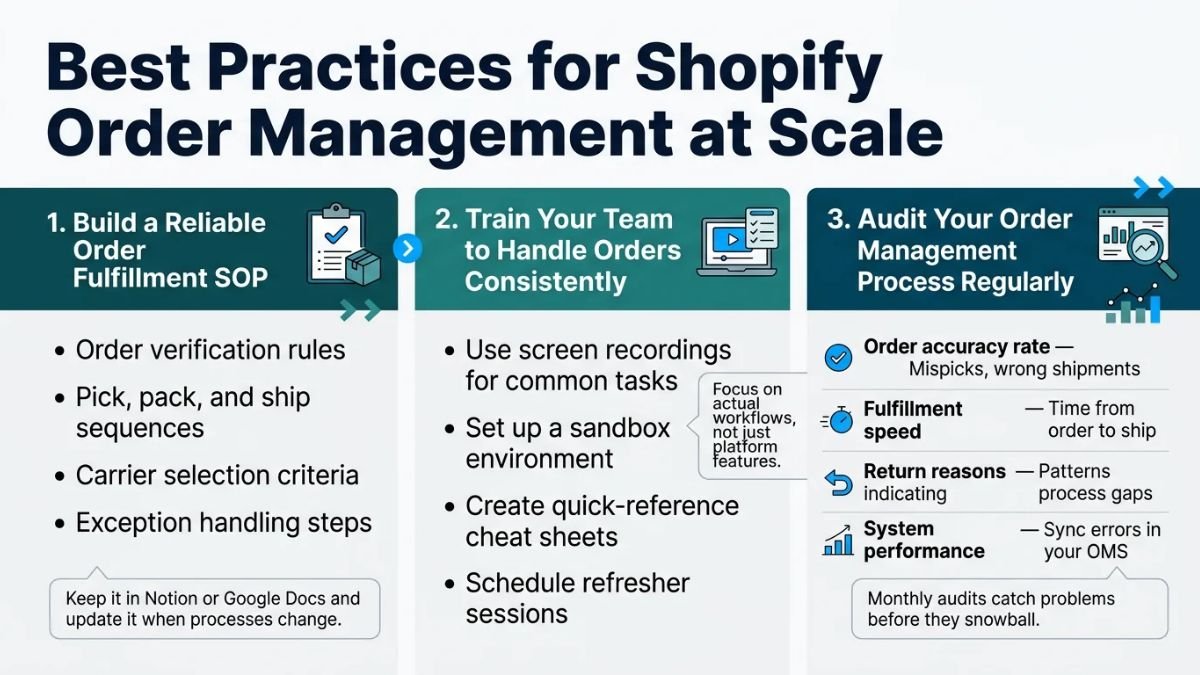
Core Metrics Every Shopify Seller Should Track
| Metric | Why It Matters |
|---|---|
| Order accuracy rate | Fewer errors = lower return rates |
| Fulfillment cycle time | Speed directly impacts repeat purchases |
| Return rate | Signals product or fulfillment issues |
| Cost per order | Guides decisions on automation and staffing |
Tracking these consistently is the foundation of solid Shopify order management at any scale.
Navigating the Shopify Orders Dashboard Like a Pro
Finding and Filtering Orders Efficiently
The Shopify orders dashboard puts every order at your fingertip but only if you know how to search it well. Use the search bar to pull up orders by customer name, email, order number, or product. Filter by payment status, fulfillment status, or date range to narrow things down fast.
Save your most-used filters as custom views so you’re not rebuilding them every day. For high-volume stores, this alone cuts dashboard time significantly.
Reading Order Details and Customer Information
Click any order to see everything in one place:
- Order summary – items, quantities, discounts, taxes, and totals
- Customer profile – purchase history, contact details, and lifetime value
- Timeline – a full log of every action taken on that order
- Fulfillment status – what’s shipped, what’s pending, and tracking info
Cross-referencing the customer’s order history directly from this screen helps you spot patterns and handle support faster.
Managing Tags, Notes, and Custom Fields
Tags and notes are underrated tools in Shopify order management. Use order tags to flag priority shipments, wholesale orders, or anything needing special handling. Add internal notes to pass context between team members without cluttering customer-facing communications.
- Tags → great for filtering and automation triggers
- Notes → ideal for one-off instructions or flagging issues
- Custom fields → available via apps when native options aren’t enough
Processing Shopify Orders Faster and More Accurately
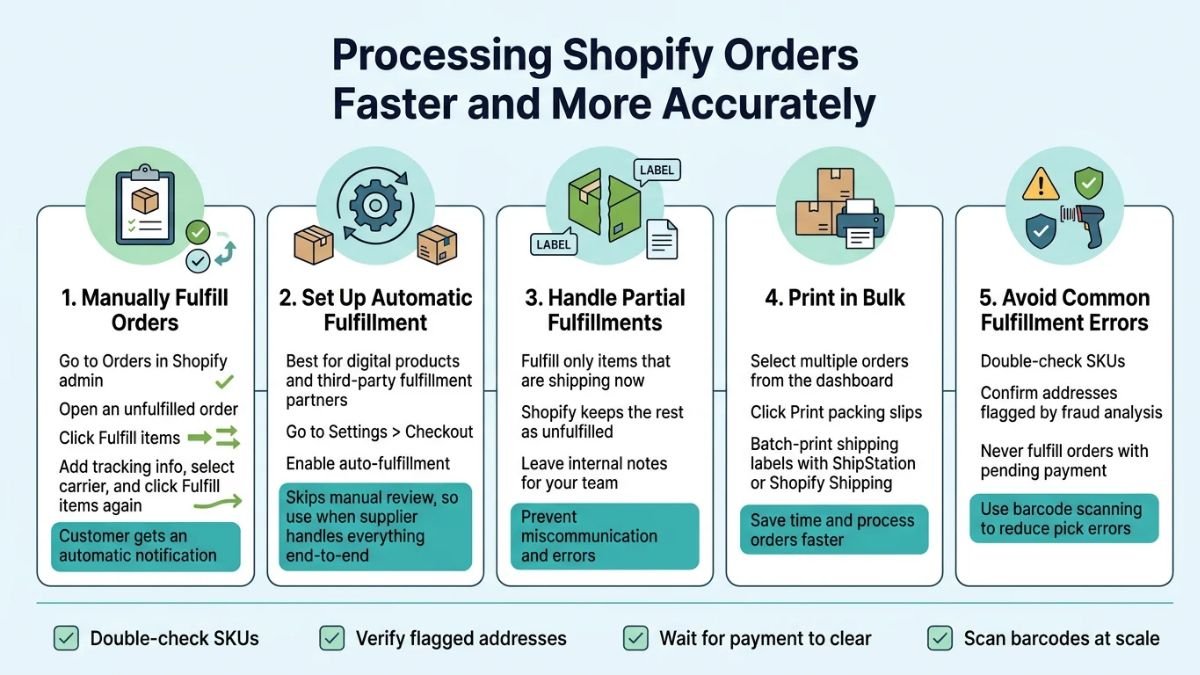
Manually Fulfilling Orders Step by Step
Go to Orders in your Shopify admin, open an unfulfilled order, and click Fulfill items. Add tracking info, select your carrier, and hit Fulfill items again. That’s it the customer gets an automatic notification.
Setting Up Automatic Order Fulfillment
For digital products or third-party fulfillment partners, automatic fulfillment saves serious time. Go to Settings > Checkout and enable auto-fulfillment. Just know this skips manual review, so it works best when your supplier handles everything end-to-end.
Handling Partial Fulfillments Without Confusion
When items ship separately, fulfill only what’s going out. Shopify tracks the rest as unfulfilled. Always leave internal notes so your team knows what’s pending miscommunication here is where errors pile up fast.
Printing Packing Slips and Shipping Labels in Bulk
Select multiple orders from your dashboard, click Print packing slips, and you’re done. For labels, apps like Shipstation or Shopify Shipping let you batch-print in seconds, cutting processing time dramatically.
Avoiding Common Fulfillment Errors That Cost You
- Double-check SKUs before marking fulfilled
- Confirm addresses flagged by Shopify’s fraud analysis
- Never fulfill orders with pending payment
- Use barcode scanning to reduce pick errors at scale
Pingback: How to Fix "Inventory Not Tracked" on Shopify (Bulk Edit & Setup Guide) -
Pingback: Omnisend Review : Is It the Best Klaviyo Alternative for Shopify? -