
You just sold a product that’s been out of stock for two weeks. A customer is expecting it shipped tomorrow, and now you’re scrambling. You check your Shopify admin and see those three dreaded words next to half your catalog: “Inventory not tracked.” This is how most store owners find out something’s gone wrong with their setup.
When Shopify isn’t tracking inventory for your products, it assumes you have unlimited stock. That means orders keep coming in whether you can fulfill them or not. The result is overselling, canceled orders, refund requests, and frustrated customers who may never come back. And if you imported products via CSV or added them manually without double-checking your settings, this problem can affect hundreds of SKUs without you even noticing.
This guide walks you through exactly how to fix it. You’ll learn how to find every untracked product in your store, enable tracking one by one or in bulk using the admin editor and CSV files, and set things up so new products are tracked correctly from the start. We’ll also cover some inventory management habits that keep this from happening again.
 Understanding “Inventory Not Tracked” on Shopify
What Does “Inventory Not Tracked” Mean?
When you see “inventory not tracked” on Shopify, it means your store isn’t monitoring stock levels for that particular product or variant. Simple as that. Shopify won’t know if you have one unit or a hundred sitting in your warehouse.
Here’s the thing. Without tracking enabled, your store can accept orders indefinitely. A customer can purchase your product even when you’re completely out of stock. That’s a recipe for disaster.
Think about what happens next. You get an order notification, start preparing to fulfill it, and realize you don’t have the item. Now you’re stuck sending apology emails, processing refunds, and dealing with unhappy customers who were excited about their purchase. Not exactly the brand experience you want to create.
Shopify’s inventory tracking system works like a counter. Every time someone buys a product, the system automatically deducts one from your available quantity. When someone returns an item, it gets added back.

The problem with untracked inventory goes beyond just overselling. You lose the ability to make informed business decisions. How can you know when to reorder products? Which items are your best sellers? What’s the total value of your stock? All these crucial insights disappear when inventory tracking is off.
Your reporting becomes useless too. Sales analytics won’t match up with actual inventory movement. Financial projections get messy. And if you’re managing multiple sales channels or warehouse locations, the chaos multiplies fast.
Common Reasons for Untracked Inventory
So why does this happen in the first place? Let’s walk through the usual suspects.
Manual product creation is the biggest culprit. When you’re adding products one by one through the Shopify admin, there’s a checkbox for “Track quantity” that you need to enable. Many store owners either miss it completely or intentionally skip it without understanding the consequences. Maybe you’re in a rush to get products listed. Maybe the interface wasn’t clear. Either way, that unchecked box leaves your inventory in limbo.
CSV imports cause headaches all the time. You export your product data, make changes in Excel or Google Sheets, and import everything back into Shopify. Sounds straightforward, right? But if the “Variant Inventory Tracker” column isn’t set to “shopify” or if it’s blank, those products won’t track inventory. One small mistake in your spreadsheet affects hundreds of products instantly.
Variant-specific settings trip people up constantly. You might have inventory tracking enabled for your main product but forgot to turn it on for individual size or color variants. Each variant has its own tracking toggle, and they don’t automatically inherit the parent product’s settings.
App conflicts happen more than you’d think. Third-party inventory management apps or dropshipping integrations sometimes override Shopify’s default tracking settings. The app might be managing inventory its own way, leaving Shopify’s native tracking disabled. When you disconnect the app later, you’re left with untracked products and no clear explanation why.
Step-by-Step Guide to Fixing Individual Products
How to Filter and Find Untracked Inventory in the Shopify Admin
Before you can fix anything, you need to know which products aren’t being tracked. Shopify makes this easier than you might think.
Log into your Shopify admin and head to the Products section. To isolate the exact items causing issues, click the Search and filter icon (the magnifying glass with lines) at the top of your product list. Click Add filter, select Inventory tracking, and choose Not tracked. 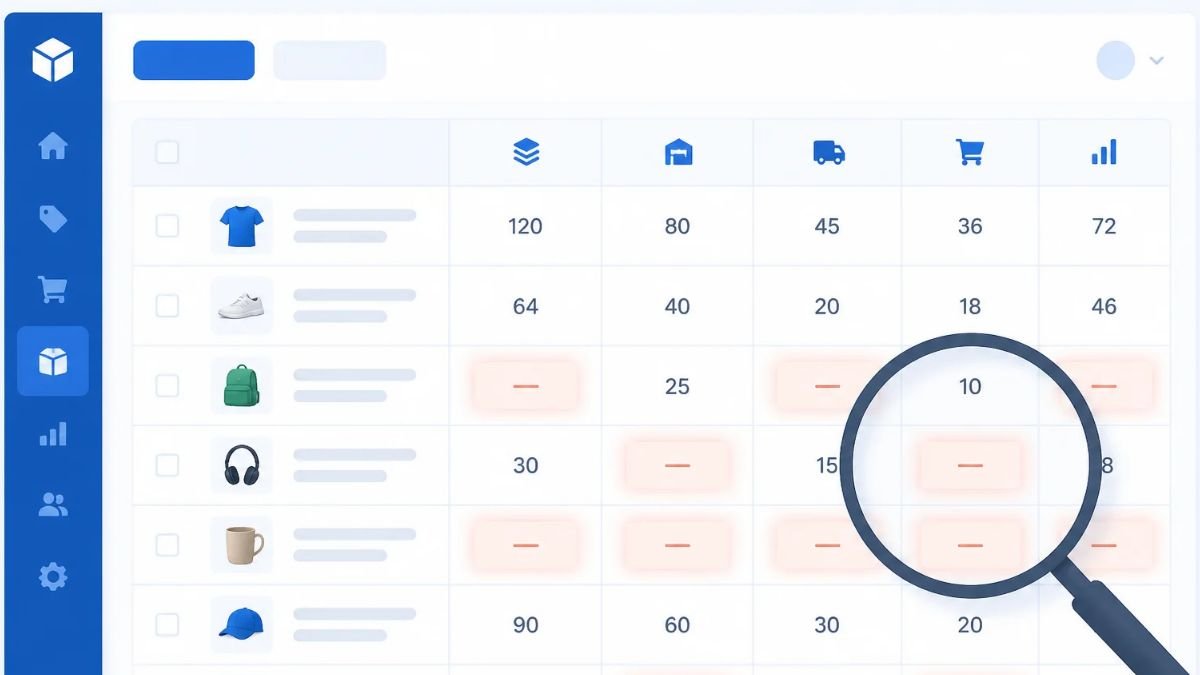
You’ll need this next step to actually turn tracking on.
Enabling Inventory Tracking for a Single Product/Variant
You’re now looking at a specific product page. Scroll down until you find the Inventory section. It’s usually below pricing and above shipping settings.
Look for a checkbox labeled “Track quantity.” Simple enough, right? If this box is unchecked, that’s your problem. Shopify isn’t monitoring how many units you have in stock because it thinks you don’t want it to.
Check that box now.
The moment you do, new fields appear. You’ll see an option to enter your current stock level. This is critical. Don’t just enable tracking and walk away. You need to tell Shopify how many units you actually have on hand right now.
Enter the accurate quantity for this product. If you have multiple locations enabled in your Shopify store, you’ll see separate quantity fields for each location. Fill them all out based on where your physical inventory actually sits.
You’ll also notice settings for what happens when stock hits zero. The “Continue selling when out of stock” option lets customers buy even when you’re showing zero inventory. Most store owners keep this unchecked to prevent overselling, but digital products or made-to-order items might want it enabled.
Don’t forget about variants. If your product has multiple options like size or color, each variant tracks separately. Click into the variant details if needed. Each one has its own “Track quantity” setting. A common mistake is fixing the main product but forgetting that the blue medium t-shirt still isn’t being tracked.

Hit Save when you’re done. That product is now properly monitored in your inventory system.
How to Bulk Edit “Inventory Not Tracked” on Shopify
When you’re dealing with dozens or even hundreds of products showing “inventory not tracked,” fixing them one by one is a nightmare. Luckily, Shopify gives you two solid ways to handle this in bulk. Let’s break down both methods so you can get your stock tracking sorted fast.
Using the Shopify Admin Bulk Editor
The bulk editor is your friend here. Start by heading to your Products page in the Shopify admin. You’ll want to find all those products that aren’t being tracked, so use the filter options at the top of the product list. Click on “More filters” and look for inventory or tracking options to narrow down your view.
Once you can see the products that need fixing, select them by checking the boxes next to each one.
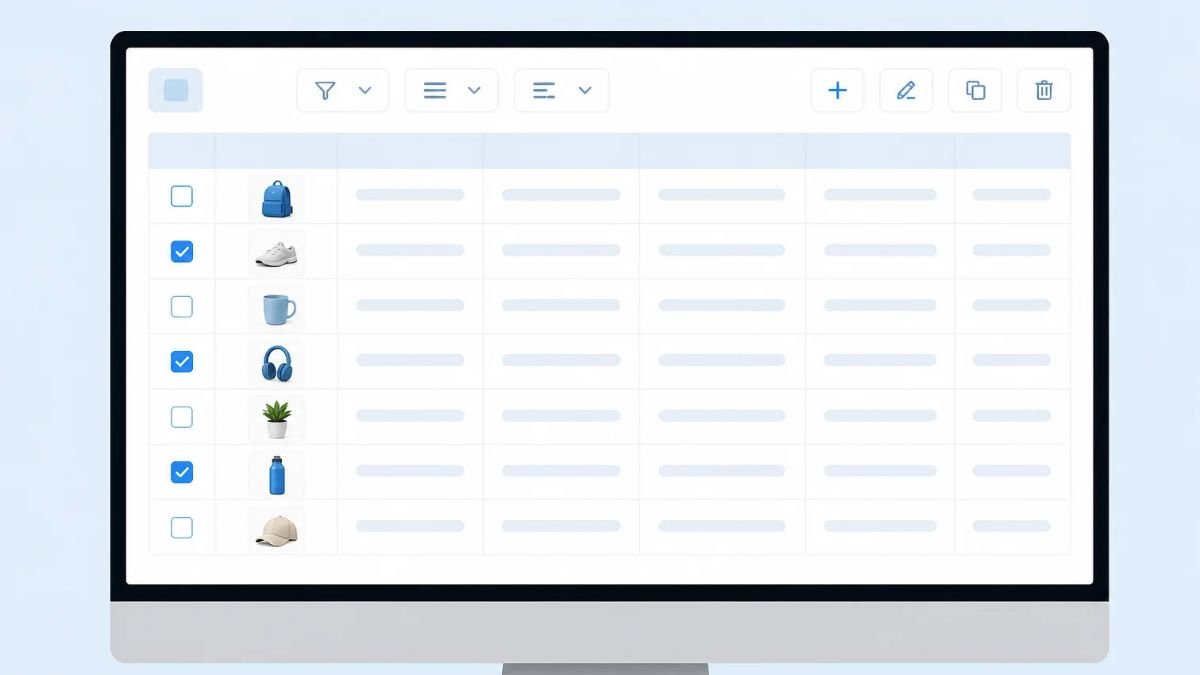
You can select individual products or use the checkbox at the top to grab everything on the page. After selecting your products, click the “Edit products” button that appears.
Here’s where it gets good. The bulk editor opens in a spreadsheet-like view. You need to add the right column to make changes. Click “Columns” on the right side of the screen and search for “Track quantity” or inventory-related fields. Add this column to your view.
Now you can see which products have tracking enabled and which don’t. For products showing “inventory not tracked,” simply check the “Track quantity” box in the bulk editor. You can do this for multiple products at once. Make sure to set your initial stock levels while you’re at it. Click “Save” when you’re done, and Shopify will apply the changes to all selected products.
Bulk Editing via CSV Import/Export
The CSV method works better when you’re dealing with massive inventories or need more control. Go to your Products page and click “Export” at the top. Select which products you want to export (all products or just the ones with specific criteria). Download the CSV file to your computer.
Open the file in Excel, Google Sheets, or any spreadsheet program.
Look for the column labeled “Variant Inventory Tracker.” This is the magic column. For any product where inventory isn’t being tracked, you’ll see this cell is blank or contains something other than “shopify.”
Change the value in that column to shopify for every variant you want to track. That’s the key—just type shopify in lowercase. Important note on setting quantities: If your store only has one location, you can update the Variant Inventory Qty column. However, if you use multiple locations, Shopify ignores that column entirely. Instead, you must update the specific column named Location: [Your Location Name] (e.g., Location: Main Warehouse) to set your starting stock levels.
Save your CSV file. Back in Shopify, go to Products and click “Import.” Upload your edited CSV file. Shopify will show you a preview of the changes before you commit. Review everything carefully because bulk imports can’t be easily undone.
A few quick tips to avoid headaches: always keep a backup of your original CSV file before making changes. Don’t modify the product ID or variant ID columns, as these tell Shopify which products to update. Watch out for extra spaces or typos in the “Variant Inventory Tracker” column. If you type “Shopify” with a capital S instead of “shopify,” it won’t work. Keep it simple and lowercase.
Setting Up Inventory Tracking for New Products and Variants
Default Inventory Settings
When you add new products to your Shopify store, you want to make sure inventory tracking is turned on from the start. This saves you from having to fix the “inventory not tracked shopify” problem later.
Here’s the thing. Every time you create a new product, Shopify gives you the option to track quantity right there in the inventory section. You’ll see a checkbox that says “Track quantity.” Make it a habit to check that box. Always. If you skip this step during product creation, you’ll end up with untracked inventory that can lead to overselling and angry customers.
The inventory policy setting is just as important as tracking itself. You’ll notice an option that says “Continue selling when out of stock.” This decides what happens when your stock hits zero. If you enable this setting, customers can still buy the product even when you have none left. That might work for pre-orders or digital products, but for physical items, it’s usually a bad idea. You don’t want to sell something you can’t ship.
Set your default approach early. Train yourself and your team to enable tracking on every single product unless there’s a specific reason not to. Some products like services or digital downloads don’t need inventory tracking, but physical products almost always do.
Managing Inventory for Products with Variants
Products with variants need special attention. Think about a t-shirt that comes in three sizes and four colors. That’s twelve different variants, and each one needs its own inventory tracking.
Each variant gets its own stock count. You might have 10 medium blue shirts but only 2 large red ones. Shopify tracks these separately, but only if you set it up correctly. When you’re creating variants, make sure the “Track quantity” option is enabled for each one. Missing even a single variant creates problems.
Why does this matter so much? Because customers don’t buy “a shirt.” They buy a large black shirt. If that specific variant isn’t tracked, you could sell five of them when you only have two in stock.
Location-based inventory adds another layer. If you have multiple warehouses or retail stores, Shopify lets you track inventory at each location separately. You might have 5 units at your main warehouse and 3 at your retail store. The system tracks both and updates availability based on where you can fulfill orders from.

When setting up variants with multiple locations, check the inventory levels for each variant at each location. Yes, it takes time. But getting this right prevents the headache of figuring out how to change inventory not tracked on shopify across dozens or hundreds of products later.
Best Practices for Shopify Inventory Management
Regular Inventory Audits and Reconciliation
Your Shopify dashboard might say you have 50 units in stock, but do you really? Physical inventory counts can drift from your digital records for dozens of reasons. A customer might return a damaged item that never gets logged back in. Products could get stolen, lost, or broken during storage. Sometimes staff members forget to update quantities after fulfilling orders manually.
Schedule regular inventory audits to catch these discrepancies before they become real problems. Monthly checks work well for most stores, but high-volume businesses should consider weekly or even daily spot checks on their best-selling items.
The audit process doesn’t need to be complicated. Pick a quiet time when you’re not actively fulfilling orders, grab your phone or a tablet, and physically count what’s on your shelves. Compare those numbers against what Shopify shows. When you find differences, adjust your Shopify inventory to match reality and try to figure out why the gap happened in the first place.
Shopify’s native inventory reports give you a solid starting point. Look for products showing negative inventory levels or items that haven’t moved in months. These red flags often point to tracking issues that need fixing. You can also export your inventory to a spreadsheet for deeper analysis, especially if you’re managing hundreds or thousands of SKUs.
Some stores use barcode scanners connected to inventory management apps to speed up physical counts. This approach cuts down on human error and makes the whole process faster. Even a basic smartphone scanner app can save you hours compared to manually typing in product codes.
Leveraging Inventory Management Apps
Shopify’s built-in inventory tracking handles the basics just fine, but growing businesses often hit its limitations pretty quickly. You can’t easily forecast future demand, set automatic reorder points, or manage inventory across multiple warehouses without some serious manual work.
That’s where third-party inventory apps come in. Apps like Stocky (for Shopify POS), Inventory Planner, and robust OMS platforms like Cin7 or ShipHero add layers of intelligence to your stock management. They analyze your sales patterns to predict exactly when you’ll run out of specific products and factor in supplier lead times. Smart, right?
These tools can automatically generate purchase orders when stock dips below your chosen threshold. No more scrambling to reorder popular items at the last minute. Many apps also offer advanced reporting that shows which products tie up too much cash and which ones fly off the shelves.
Multi-location businesses benefit hugely from apps that track inventory across different warehouses, retail stores, and fulfillment centers. You get real-time visibility into where every single unit lives, making it easier to route orders efficiently and avoid disappointing customers with out-of-stock messages.
Training Staff on Inventory Procedures
Even the best inventory system falls apart if your team doesn’t know how to use it properly. One person forgetting to enable “inventory not tracked shopify” settings on new products creates headaches that ripple through your entire operation.
Create clear, written procedures for common inventory tasks. Document exactly how to add new products with tracking enabled, how to adjust quantities after receiving shipments, and what to do when physical counts don’t match the system. Screenshots help a ton here.
Walk every team member through these procedures, whether they’re handling product uploads, warehouse management, or customer service. Everyone touching inventory should understand why accurate tracking matters and how their actions affect the bigger picture.
Set up regular check-ins to review inventory accuracy metrics with your team. When errors happen (and they will), treat them as learning opportunities rather than reasons to assign blame. The goal is building a culture where everyone takes ownership of keeping inventory data clean and reliable.
Conclusion
Untracked inventory is a ticking time bomb for your Shopify store. Leaving the “Track quantity” box unchecked might save you a few seconds during product creation, but it ultimately leads to the exact scenario every store owner dreads: overselling, issuing refunds, and apologizing to angry customers for items you don’t actually have in the warehouse.
Fortunately, Shopify provides the tools to clean this up fast. Whether you are using the native Bulk Editor to check a few dozen boxes or fixing the Variant Inventory Tracker column in a massive CSV upload, getting your stock synced is a one-time fix that prevents long-term chaos.
Once your catalog is fully tracked, the real work begins. Build a habit of running routine cycle counts, train your staff to properly configure new variants, and consider upgrading to a dedicated inventory management app as your order volume scales. By keeping your inventory data accurate, you protect your profit margins and guarantee a seamless experience for every customer who clicks “Buy.”
Frequently Asked Questions (FAQ)
1. How do I turn on inventory tracking for all products at once in Shopify?
The fastest way to enable tracking for your entire catalog is via a CSV export. Export all your products, open the file in a spreadsheet, and locate the column named Variant Inventory Tracker. Change every blank cell in that column to the word shopify (all lowercase). Save the file and import it back into your store to instantly bulk-track your inventory.
2. Why does my store say “Inventory not tracked” after a CSV import?
This almost always happens because of a formatting error in your spreadsheet. If the Variant Inventory Tracker column is left blank, deleted, or if you capitalize the word “Shopify” (it must be exactly shopify in lowercase), the system will fail to recognize the command and will leave your newly imported products untracked.
3. Should I check the “Continue selling when out of stock” box?
For standard physical goods, you should leave this unchecked to prevent accidentally overselling inventory you don’t physically have. You should only enable this setting if you are selling digital products, services, or accepting pre-orders for items you know are actively being manufactured and arriving soon.
4. Why are my individual product variants not tracking inventory?
Shopify tracks inventory at the variant level, not the parent product level. If you enabled tracking for a main t-shirt product but forgot to check the box for the specific “Large / Blue” variant, that specific size and color will remain untracked. You must ensure the “Track quantity” setting is enabled for every individual variant you create.
5. How do I find all the untracked products hidden in my Shopify admin?
You don’t need to click through every product manually. Go to your Shopify Admin, click on Products, and click the Search and filter icon. Add a filter for Inventory tracking and select Not tracked. This will instantly generate a list of every product and variant in your store that is currently missing stock data.